
How to download videos from any website
There are two ways, and both are free. Paste a public link into the online downloader, or install the Chrome extension and save the video from the page you are on. Both give you a normal MP4 that plays anywhere.
Which way should I use?
| Online downloader | Chrome extension | |
|---|---|---|
| Works on | Any device with a browser, including phones | Chrome, Edge, Brave and Opera on a computer |
| Needs | A public link | The page open in your browser |
| Sign-in-only videos | No | Yes, it sees what you see |
| Limits | Up to 1080p and 3 hours per video | None |
| Install | Nothing | One click from the Chrome Web Store |
Rule of thumb: on a phone, or for a quick one-off, use the online downloader. If you save videos often, or the video only plays when you are signed in, use the extension.
Way 1: paste the link
1. Copy the link
Open the video on its site. Press Share, then Copy link, or copy the address bar. Short links such as vm.tiktok.com or fb.watch work too. The page for each site explains the exact link shape, for example the TikTok downloader or the Reddit video downloader.
2. Paste it and press Find media
Paste the link into the box on the online downloader or on the site's own page. Our server opens the page the way a browser would and lists the video, its sound and any pictures it finds, with the formats and sizes available.
3. Pick a quality and download
Choose MP4 and a size, or MP3 for the sound only, and press Download. The file streams through our server to your Downloads folder and nothing is kept afterwards. Sites that split video and sound into two streams, like Reddit or Bilibili, come back as one file with sound.
Way 2: the Chrome extension
1. Install it
Open the Chrome Web Store page and press "Add to Chrome". It is free and there is no account to create. Pin the icon to your toolbar so it is always one click away: click the puzzle-piece icon in Chrome, then the pin next to Universal Video Downloader.
2. Open the page and click the icon
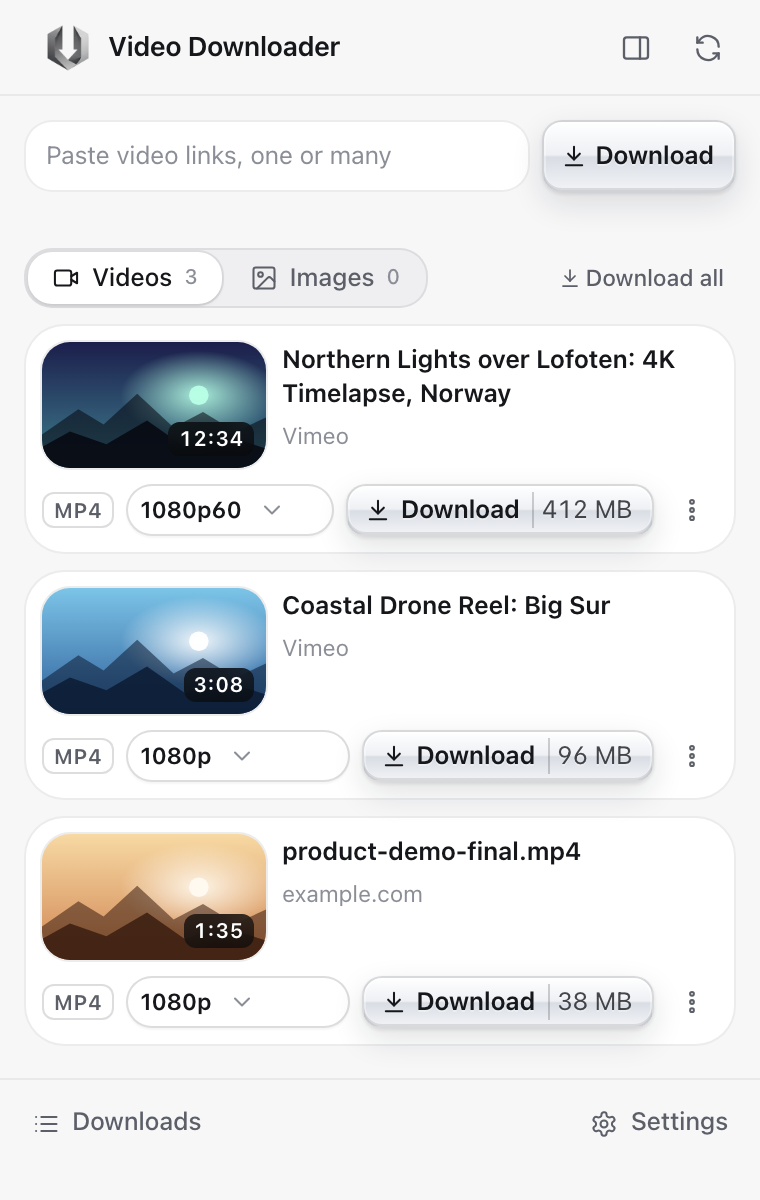
Go to the page with the video and start playing it for a second or two. Then click the extension icon. The video appears in the popup with its title, length and file size.
3. Pick a quality and press Download
The quality picker shows every size the site offers, for example 1080p, 720p and 480p, with the file size next to each. The best one is selected already. Press Download. Progress shows right on the card, and the finished file goes to your Downloads folder as an MP4 that opens in any player.
You can also paste links into the box at the top of the popup, one or several on separate lines, and press Download to save them all.
What you get
- Video: MP4 with H.264 video and AAC sound, the format every phone, TV and editor accepts. No conversion needed.
- Quality: the sizes the site itself serves. We never upscale, so 1080p means the site had 1080p.
- Sound only: MP3 or M4A, see how to save only the audio.
- Pictures: the full-size originals, see how to save images in full size.
- Subtitles: as an .srt file or inside the MP4, in the extension, see how to download subtitles.
What does not work, and why
- Paid streaming services. Their videos are protected with DRM. No downloader can save them, and we refuse them on purpose.
- Live streams while live. A live stream is not a finished file. Wait for the replay or VOD to appear.
- Private, friends-only and paywalled posts on the website. Our server is a visitor, so it sees what a visitor sees. The extension works inside your own signed-in browser and can save those.
- A few sites that block servers outright. Behance is one. Their pages work only in the extension.
If the video is not listed
- Press play on the video, wait a few seconds, then press the refresh button at the top of the popup.
- Reload the page and open the popup again.
- On the website, check that the link opens in a private window without asking you to sign in.
The full list of reasons is in when a video is not found. Site-specific limits are on each downloader page, for example Dailymotion, Vimeo or Twitch.
Is this legal?
Downloading a video for your own offline viewing is allowed in many places and against the rules of some sites. Saving your own uploads, public-domain or openly licensed material, or content the creator lets you download is fine. Re-uploading or selling someone else's work is not. Only download what you have the right to save.