
How to download subtitles with a video
When a site offers subtitles, the Chrome extension can save them with the video. You choose the language and whether they go in a separate file or inside the MP4. This is an extension feature; the online downloader saves the video and sound only.
1. Set your languages once
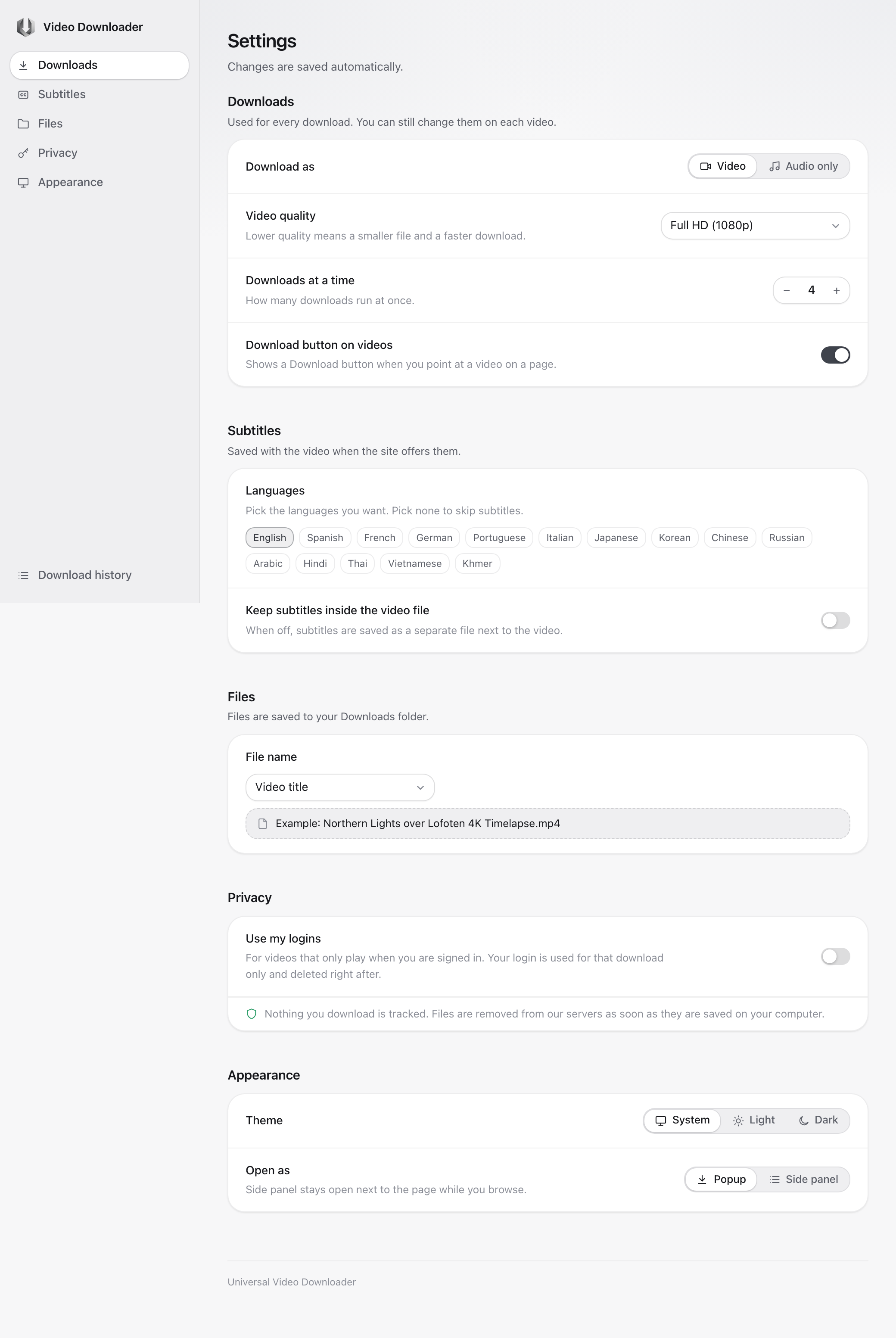
Open Settings from the bottom of the popup and go to Subtitles. Pick the languages you want, for example English and Khmer. The first one you pick is preferred when a video offers several.
2. Separate file or inside the video?
- Separate file (the default): an .srt file is saved next to the video. VLC, Windows Media Player, IINA, Kodi and most TVs load it automatically when it has the same name as the video.
- Inside the video: turn on "Keep subtitles inside the video file". The subtitles travel with the MP4 as a text track, and you can switch them on or off in the player. Good for phones and for sending the file to someone else.
3. Download as usual
Open the page, click the icon and press Download. If the video has subtitles in one of your languages, they are included. To change the language for one download, press the three dots on the card and pick it from the Subtitles list.
Which sites have subtitles?
| Site | Subtitles |
|---|---|
| Vimeo | Yes, when the owner uploaded captions. Often several languages. |
| Dailymotion | Yes on many videos, including auto-generated ones. |
| Twitch | Rarely. Most clips and VODs have none. |
| TikTok, Instagram, X | Captions are burned into the picture, not a separate track, so there is nothing to download. The words stay visible in the video. |
| Internet Archive | Sometimes, as a separate file on the item page. |
| Streaming players (JW Player, Kaltura, Cloudflare Stream) | Yes when the publisher added them. The popup lists the languages. |
When no subtitle is offered
- The video simply has none. The Subtitles list in the popup is empty in that case.
- The site offers them only after you chose a language in its own player. Turn captions on in the player, wait a second, then press refresh in the popup.
- Your preferred language is not among the offered ones. Open the three dots and pick another language for this download.
Using the .srt file
Keep the subtitle file next to the video with the same name, for example talk.mp4 and talk.srt. Players pick it up automatically. To change the timing or fix a word, open the .srt in any text editor: it is plain text with a time code before each line. Players that do not read .srt can use the "inside the video" option instead.